
Drift Detection
Detect, review, and remediate unauthorized configuration changes to your Azure infrastructure with continuous monitoring.
Overview
Clophi continuously monitors your Azure environment for configuration changes. Every 3 minutes, a detection cycle runs against your monitored resources, comparing their current state against their baseline state. Any deviation between the current state and its baseline is recorded as drift.
Enabling Drift Detection
To begin monitoring a resource against infrastructure drifts, open the drift detection page from the left tab. Then select the resource you want to protect against drifts over the resource list. When a resource is selected, its child resources are loaded into the right-hand tab, where each can be individually enabled for drift detection as well.
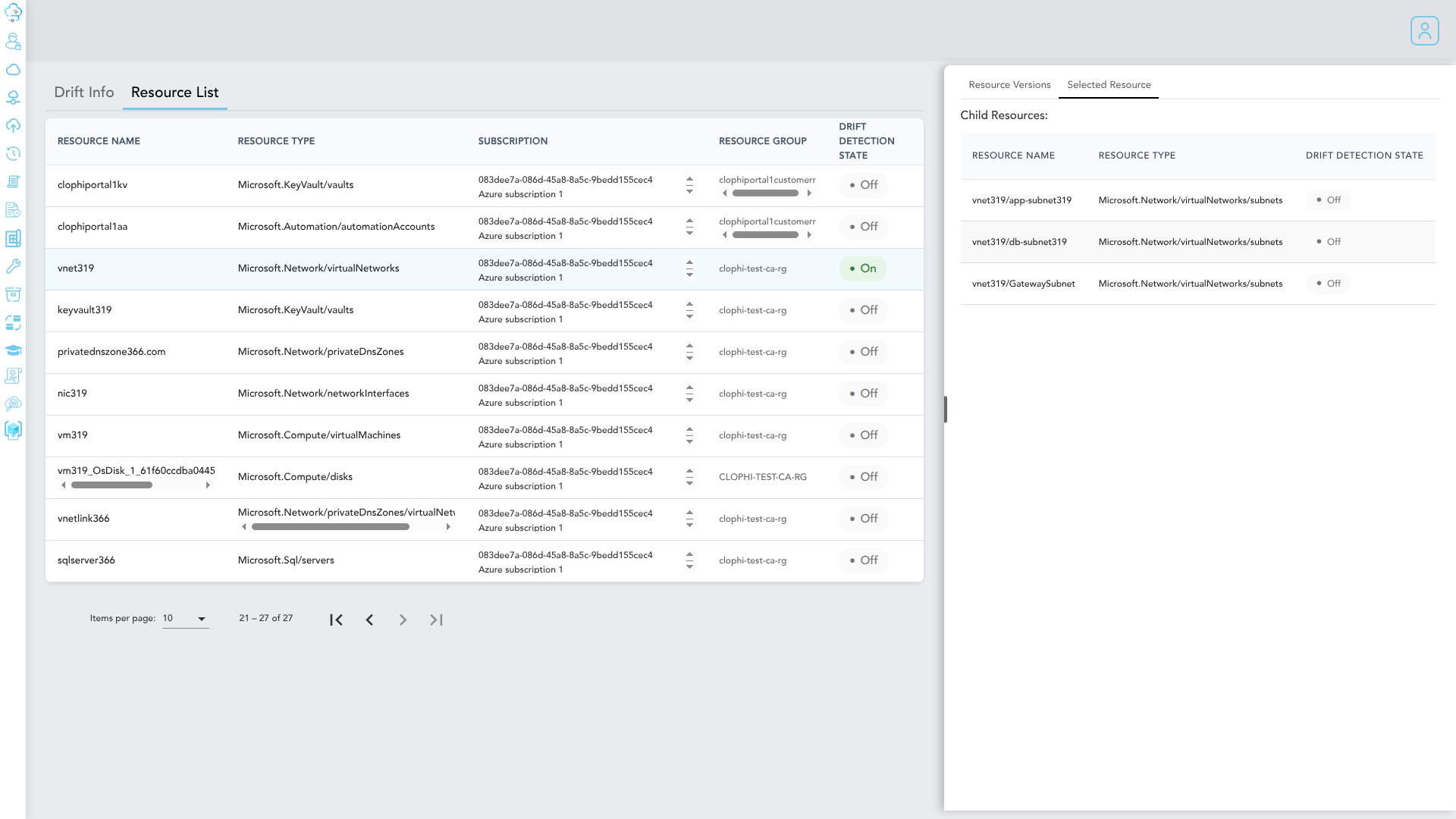
You can enable drift detection at both the parent and child resource level.
Baselines
When drift detection is enabled on a resource, Clophi captures its current state at that moment as the baseline which becomes the reference point for all future comparisons. Clophi also treats your CI/CD-deployed code repository (Bicep, Terraform or ARM) as the source of truth for the environment.
Any changes detected against the baseline that did not originate from your code repository will mark the resource as Drifted in the Drift Info dashboard.
Reviewing Drift Details
The Resource Drift Info tab displays every detected change for a resource. Each change is categorized by its operation type:
- ModifiedA property value has changed.
- CreatedA new property or element has been added.
- DeletedAn existing property or element has been removed.
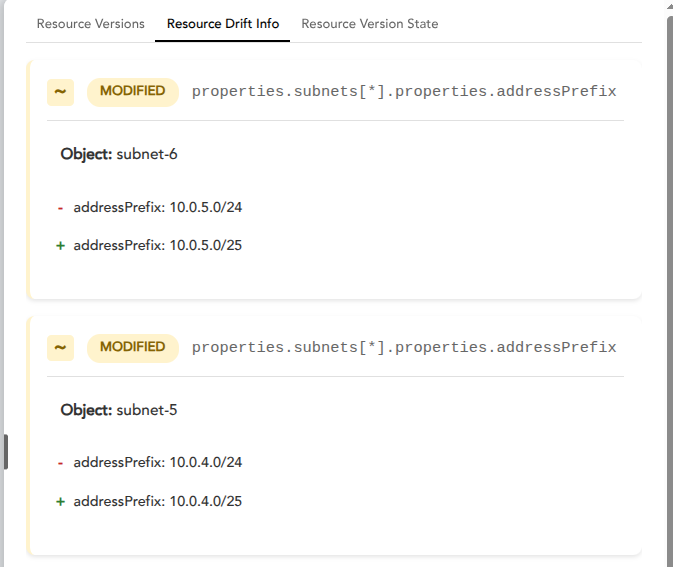
Resource alias paths
Changed properties are identified using Azure resource alias paths, which reflect the property's location within the resource schema:
properties.addressPrefixThe addressPrefix property nested under the properties object.properties.subnets[*]An array of subnet objects. The [*] notation denotes object arrays and array-type properties.Smart Array Comparison
For object arrays that contain a sub property (such as name property inside the subnets array on a virtual network resource) Clophi tracks each object in the array separately and compares it to its exact baseline object.
This eliminates the false-positive drifts caused by re-ordering changes caused by Azure and provides a clearer, and an accurate picture of what actually changed.
Version History
The Resource Versions tab provides a complete audit trail of every change applied to a monitored resource. For each version, you can see:
- When the change occurred.
- Which identity performed the change.

Select any version from the dropdown to inspect the full resource state, presented as an ARM template.

Trusted Identities
Trusted identities are the Object IDs of service principals that your CI/CD pipelines use when they get triggered by an accepted pull request. By registering these identities with Clophi, you tell the system which changes are part of your authorized deployment flow and which repository is to be considered as baseline (source of truth).
When a change is made by a trusted identity, Clophi:
- Marks the change as trusted.
- Automatically updates the baseline to reflect the new resource state.
- Clears any existing drift state on the resource.
Configuring multiple identities
To register multiple service principals, provide their Object IDs as a comma-separated list:
aae847a8-06a7-4545-b78a-a771734646b6, 801bf48e-e5c1-4dfa-871f-5c29f87417ff, ea2d2ea9-10bc-435b-be66-27c820b2b86fAuto Fix
Auto Fix automatically restores a resource to its baseline state the moment drift is detected. Instead of reviewing and manually reverting each change, Clophi handles remediation for you on every detection cycle.
You can enable Auto Fix on a per-resource basis from the resource list. When enabled, any drift detected on that resource triggers an immediate redeployment of its baseline state. Auto Fix relies on Clophi's deployer service principal to perform the redeployment.
Revert to Baseline
If Auto Fix is not enabled, you can use the Revert to Baseline action to re-configure a resource as its captured baseline state. The deployment is performed by Clophi's deployer service principal.

Accepting Drift
If a detected change represents an intentional update and if you haven't already enabled Auto Fix, you can accept this drift by clicking Set as Baseline. This action:
- Updates the baseline to the resource's current state.
- Sets the drift state to
false. - Removes the previous baseline from version history.
- By manually accepting a drift, you also bear the responsibility for updating your repository to reflect these changes.